
Agent Deployment
Agent Deployment has two tabs: Agent versions and Enrollment tokens.
Agent Deployment has two tabs: Agent versions and Enrollment tokens. It is where new agents are uploaded, devices are enrolled, and staged rollouts are managed.
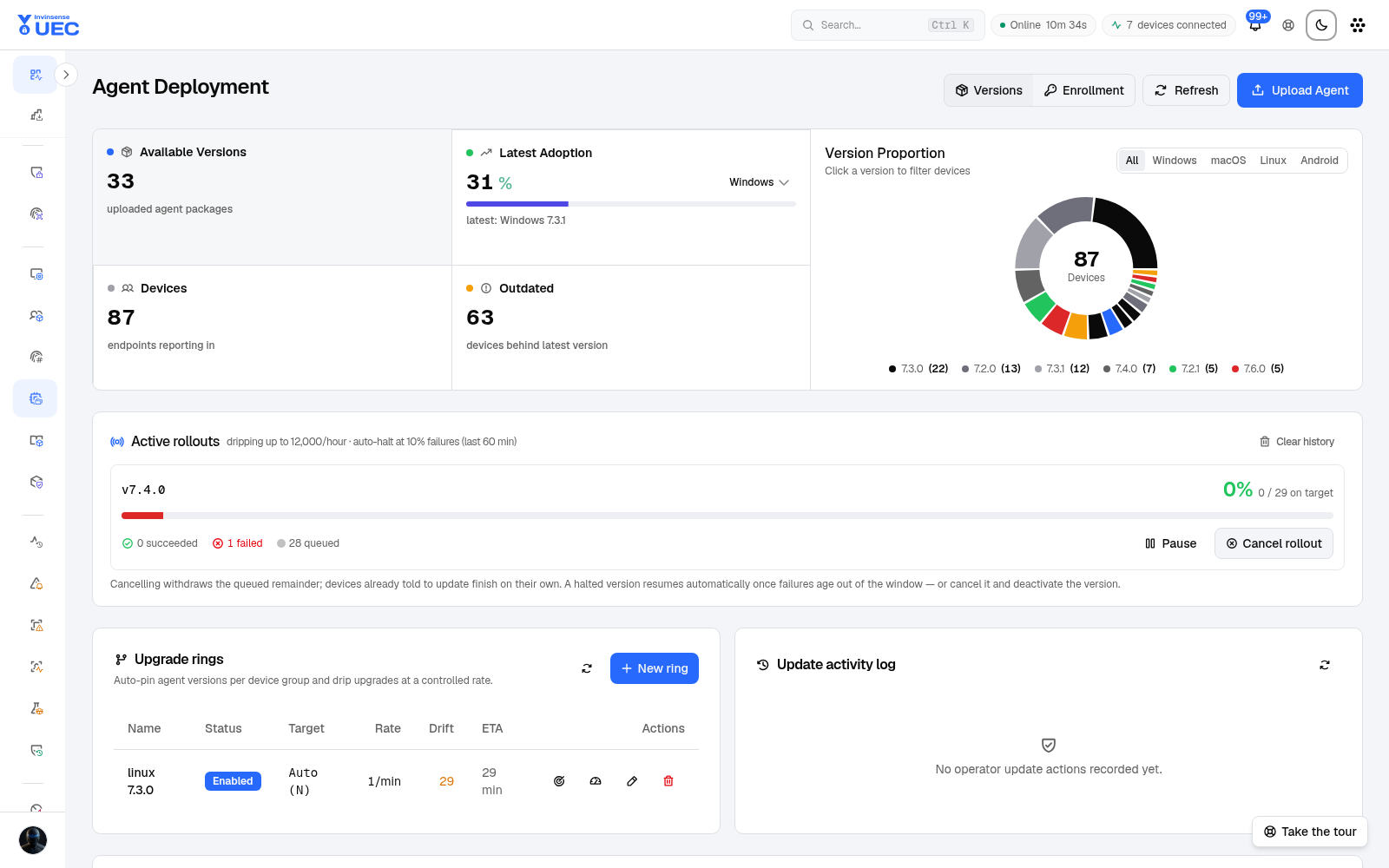
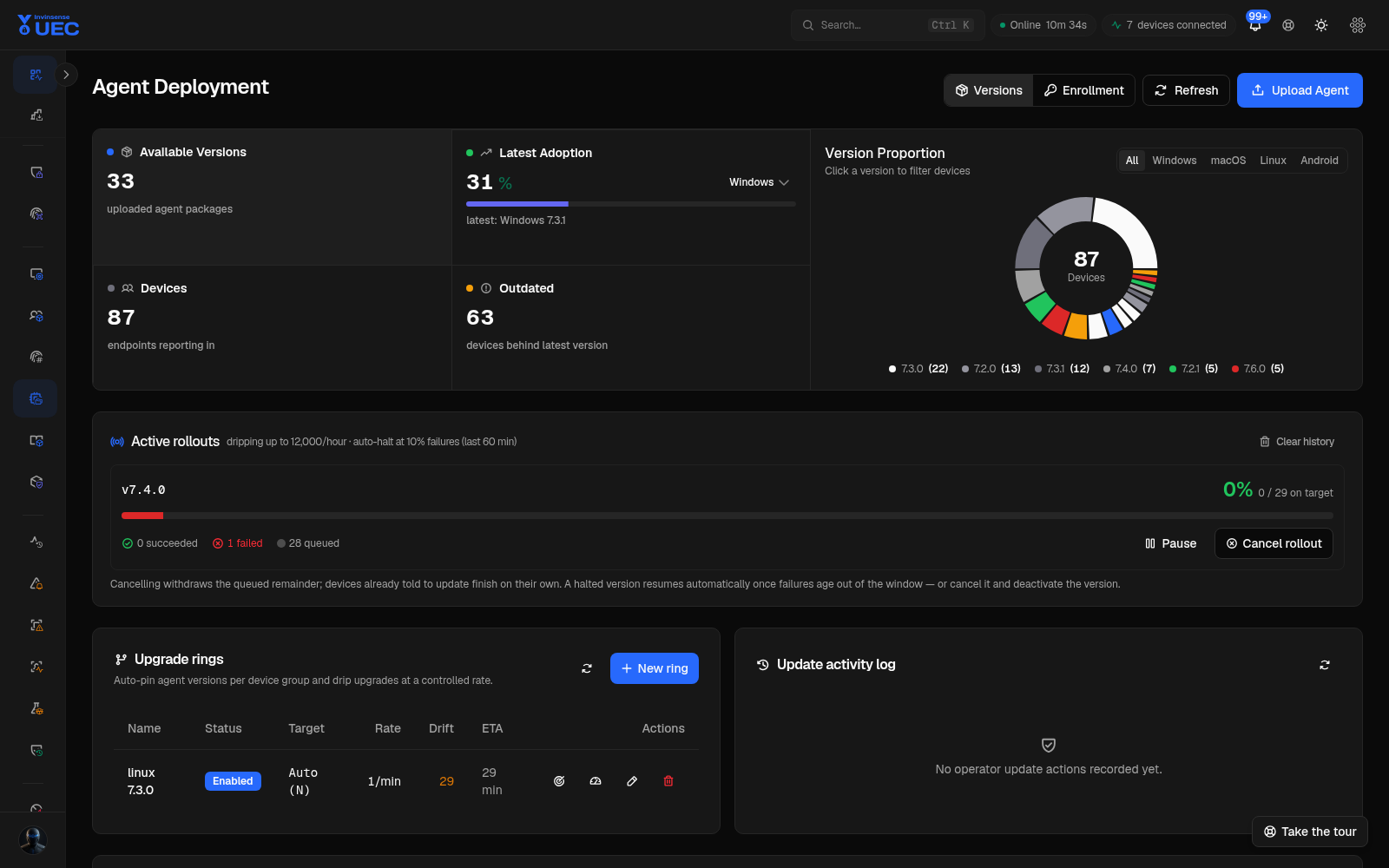
Agent versions and enrollment tokens are tabs on the canonical Agent Deployment page. The guide records that page once rather than duplicating near-identical chrome for both tabs.
Agent versions
Section titled “Agent versions”Summary
Section titled “Summary”| Tile | Meaning |
|---|---|
| Available Versions | Uploaded packages and their target OS/architecture |
| Devices | Endpoints currently reporting |
| Outdated | Devices behind the selected latest version |
OS selectors and version chips narrow the rollout view. Version chips such as 7.3.0 (22) show how
many reporting devices are on that version.
Version table
Section titled “Version table”The table lists version, release/upload date, target OS, architecture, active/inactive status, file hash, ZIP availability and actions. Search supports clauses such as:
version>=7.3.0 os:Windows status:activeBefore enabling a package, verify its hash and target OS/architecture. A Windows x64 package assigned to Linux or ARM devices is a rollout incident, not a minor filter mistake.
Upload a package
Section titled “Upload a package”- Select Upload agent package.
- Choose the OS and architecture.
- Upload the installer/package.
- Verify the computed hash.
- Mark it active only after validation.
- Target a small ring first.
Ring rollouts
Section titled “Ring rollouts”Agent rings reuse the same disciplined rollout model as policy and platform controls.
| Column | Meaning |
|---|---|
| Name | Ring/version identity |
| Status | Enabled, paused or cancelled |
| Target | Global, device group or explicit devices |
| Rate | Deployment pace, for example devices per minute |
| Drift | Devices not on the intended version |
| ETA | Estimated completion at current rate |
| Actions | Targeting, drift, edit, delete |
Use New ring, assign device groups, set a conservative rate, and then enable. Pause stops future deployments; Cancel rollout stops the campaign. Clear history removes historical presentation, not fleet state.
Safe update sequence
Section titled “Safe update sequence”- Validate the package on one IT device.
- Create a Ring 0 target.
- Set a low rate.
- Enable and monitor drift/ETA.
- Confirm connectivity, event flow and policy sync.
- Add Ring 1.
- Continue only after the previous ring is stable.
Enrollment tokens
Section titled “Enrollment tokens”
Token tiles separate:
- Active — usable;
- Fully Used — use count exhausted;
- Partial — multi-use token with remaining uses;
- Disabled — revoked;
- Expired — past expiry.
Generate a token with a use count and expiry suitable for the deployment. Copy the one-command installer while the token is active. Pre-install validation checks the token before downloading a package, so expired, used-up or disabled tokens fail immediately rather than after a long download.
Token handling
Section titled “Token handling”- Prefer short-lived, single-use tokens.
- Do not commit install commands to source control.
- Disable a token if it leaks.
- Use install-time group keys for group targeting where supported.
- Record which team or device set a token was issued to.
OS-specific notes
Section titled “OS-specific notes”| OS | Package/install focus |
|---|---|
| Windows | MSI installer, administrator check, existing-agent reconfiguration warning |
| macOS | PKG/package workflow; installer downloads to a private temporary folder; installation video available |
| Linux | DEB/RPM package; verify root-owned configuration permissions |
| Android | Sensor package reports inventory/context; not a WDAC rollout target |
Troubleshooting
Section titled “Troubleshooting”| Symptom | Check |
|---|---|
| Token rejected before download | Expiry, use count, disabled state |
| Device does not appear | DNS/base URL, enrollment token, device clock, tenant slug |
| Agent offline after update | Ring target, service status, health reasons on Devices |
| Update drift stays high | Ring rate, offline devices, cancellation, architecture mismatch |
| Events stop after update | Agent Configuration stream state and connection health |