
Getting Started
This page walks a first-time operator from sign-in to a safe audit-mode rollout.
This page walks a first-time operator from sign-in to a safe audit-mode rollout. It does not ask you to enforce policy on the first day.
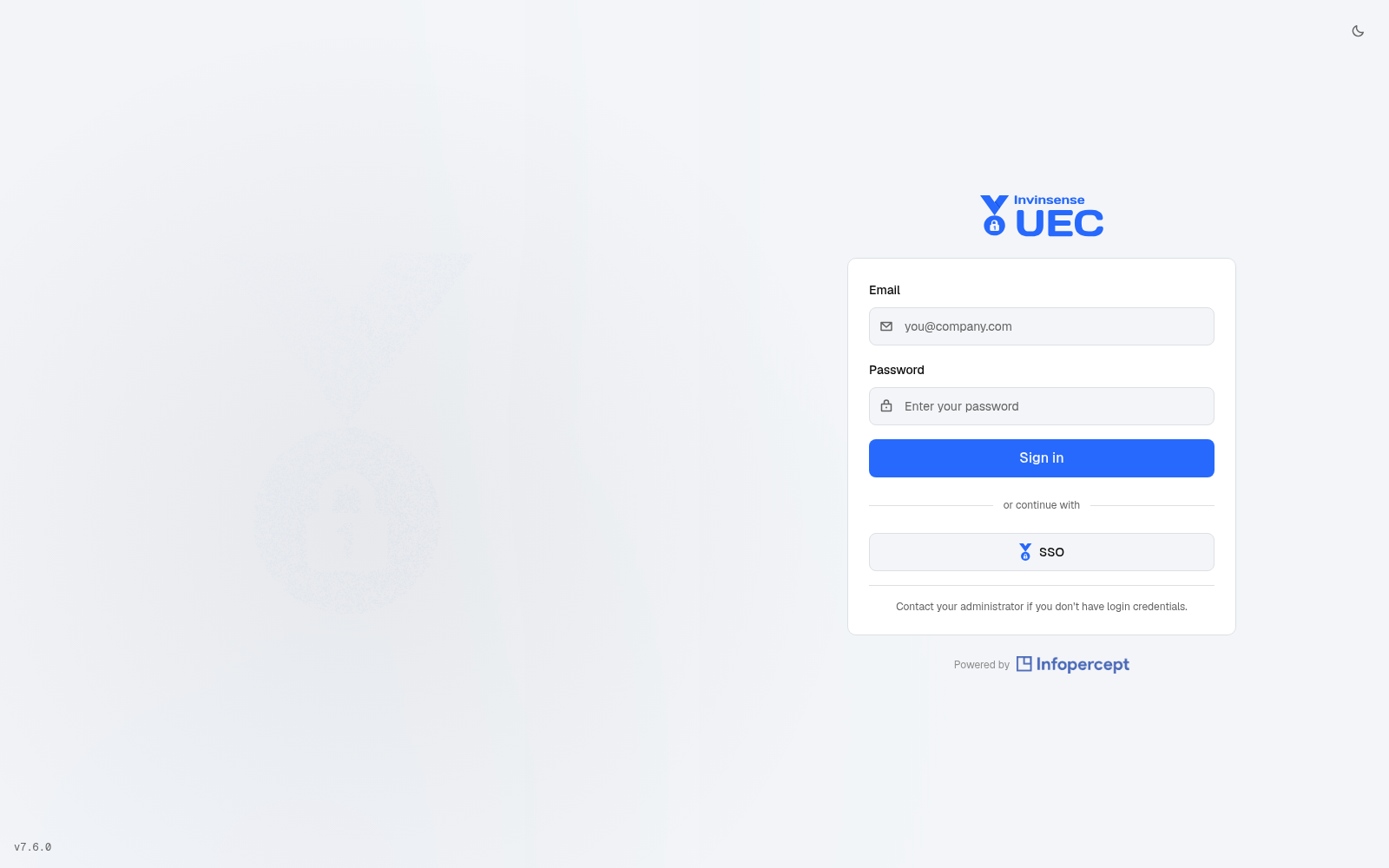

Before you sign in
Section titled “Before you sign in”Collect these details from your administrator:
| Item | Example | Notes |
|---|---|---|
| Console URL | https://platform.example.com/xdr/uec/<tenant> |
The tenant slug is part of the URL. |
| Identity | admin@example.local |
Local, Entra ID or OIDC depending on tenant configuration. |
| Password or SSO provider | — | MFA may be required. |
| Base device group | Windows-Ring-0 |
Know where test devices live before authoring. |
| Target test devices | 1–5 endpoints | Never first-enforce on the entire fleet. |
If your session has been signed out elsewhere, UEC redirects to sign-in with that reason. After a required password change, the session is restricted until the password is changed and all existing sessions are revoked.
Sign in
Section titled “Sign in”- Open the tenant URL.
- Enter your email and password, or choose SSO.
- Complete MFA if prompted.
- If UEC requires a password change, set a new password and sign in again.
- Select the base policy group scope if your account can see more than one.
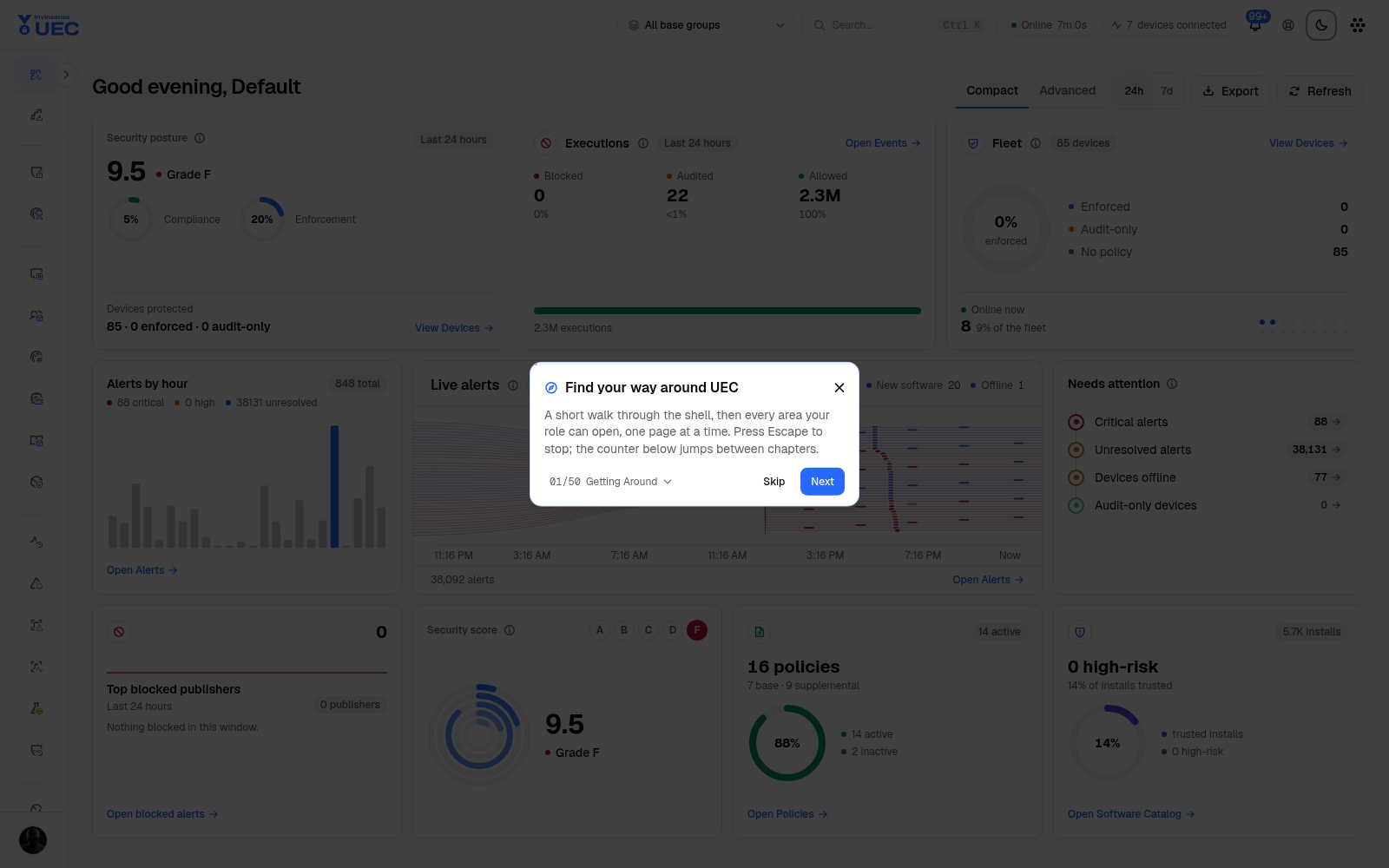
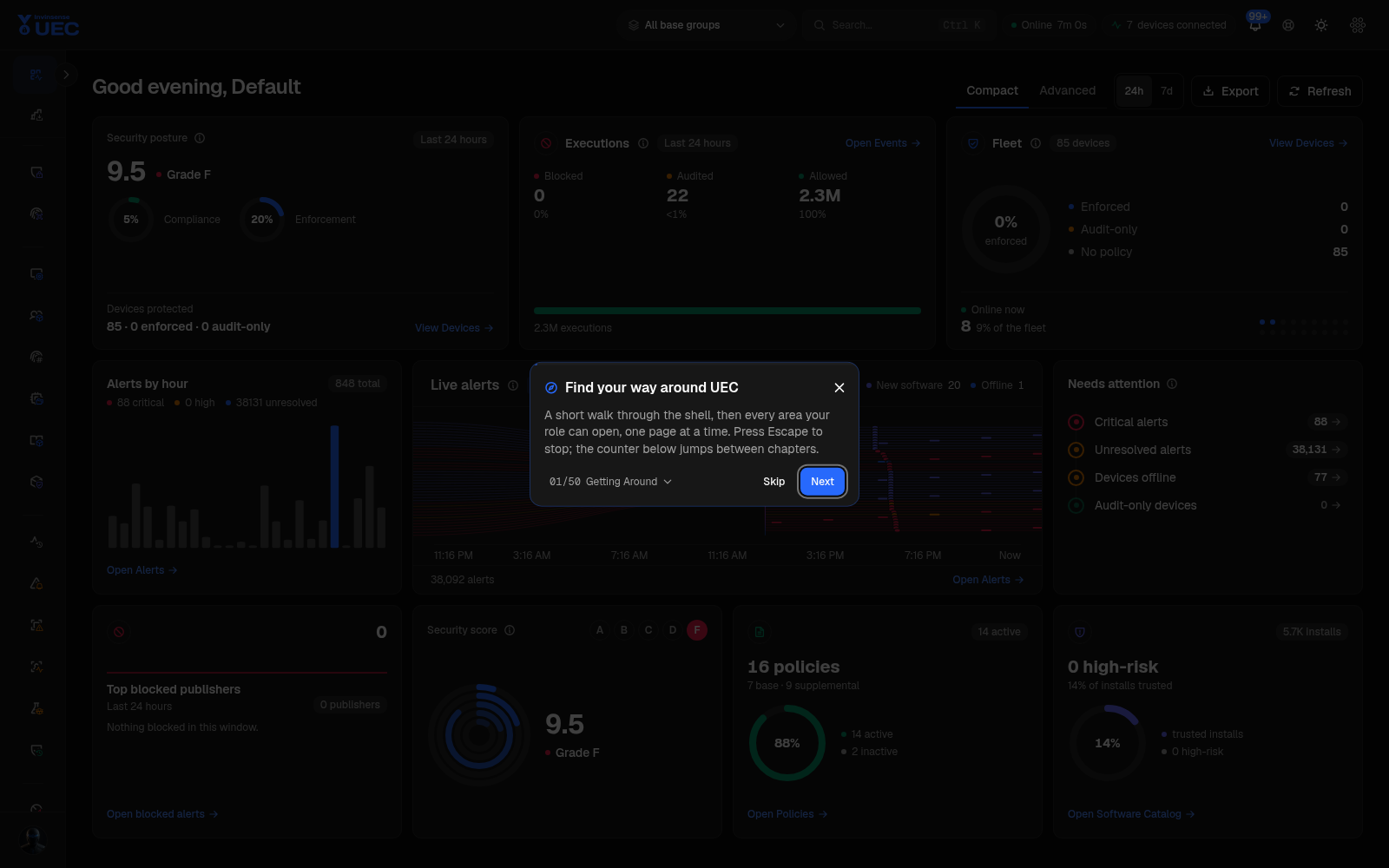
Take the fifty-step tour
Section titled “Take the fifty-step tour”Select Guided tour in the header. The tour walks the shell, dashboard, policy and endpoint areas, events, alerts, audit, protection, compliance, operations, tooling and management. You can stop with Escape, resume from the chapter picker, or replay it at any time.
- Full step list: Guided tour
- Every captured step: Screenshot catalogue
First hour: verify fleet health
Section titled “First hour: verify fleet health”- Open Devices.
- Confirm your test endpoints are online and reporting the expected version.
- Select a device to review OS, group, tags, control mode, signed/unsigned counts and last seen.
- Open About and confirm product version and service health.
- Open Audit Log and confirm your sign-in and configuration reads are recorded.
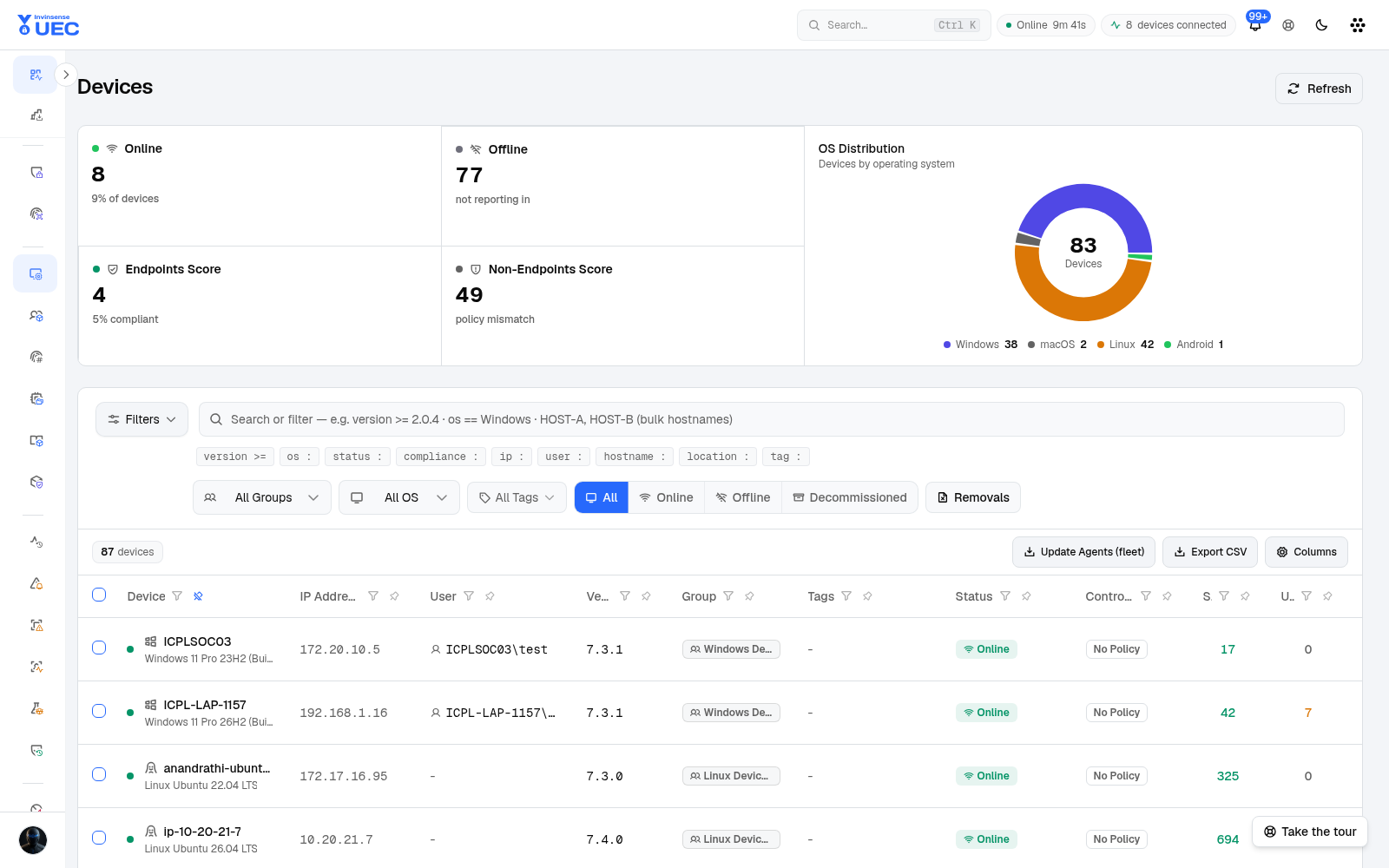
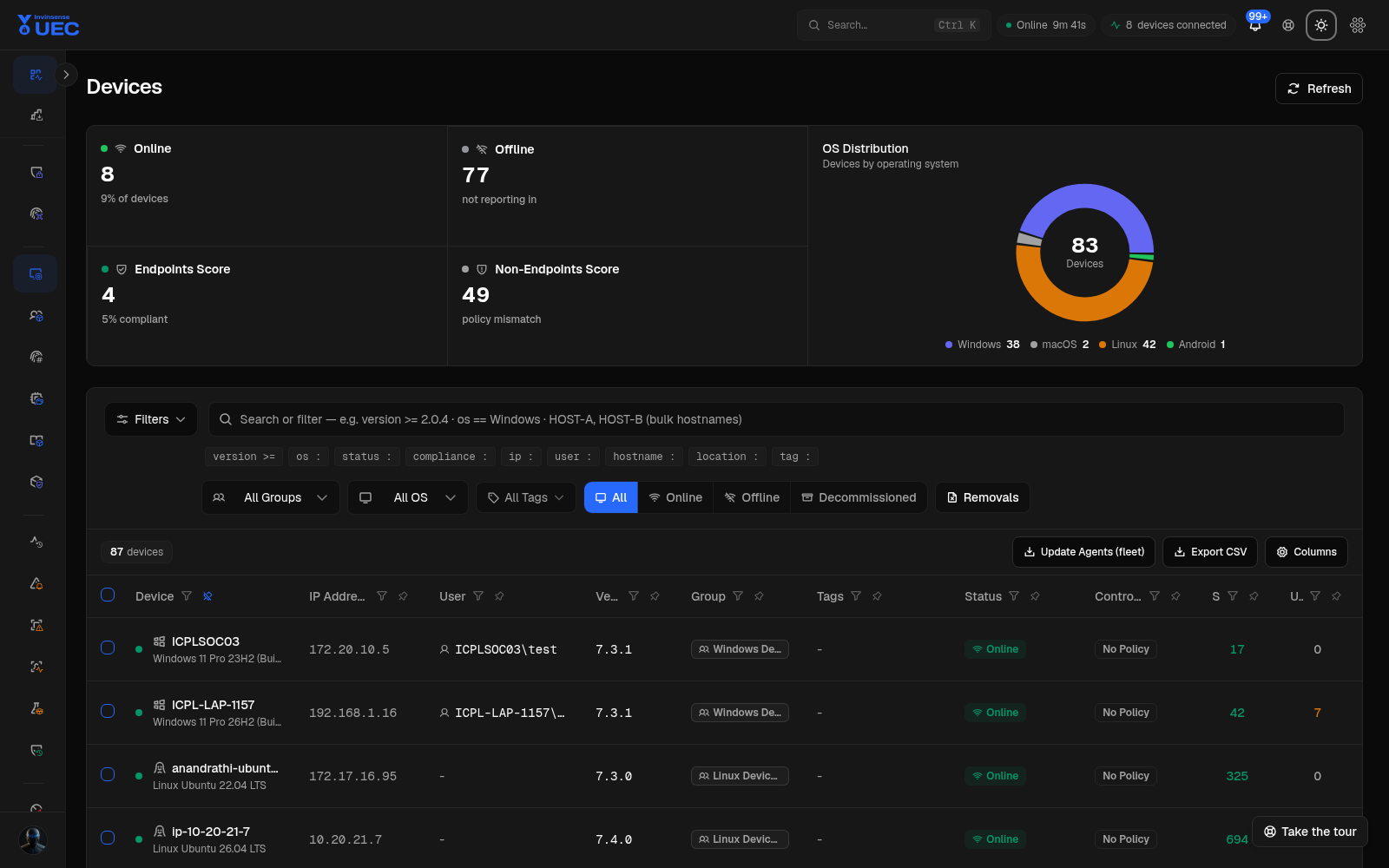
Use status:, os:, hostname:, tag: or version >= in the search box instead of paging. A
plain word still performs a normal text search.
First day: understand installed software
Section titled “First day: understand installed software”- Open Software Catalog.
- Review publisher counts, applications, logical installs and signed percentage.
- Switch between Publisher, Driver and Category views.
- Search
publisher : Microsoftorpublisher == Microsoftto see contains versus exact match. - Open an application and export its device install base if you need owner or ring information.
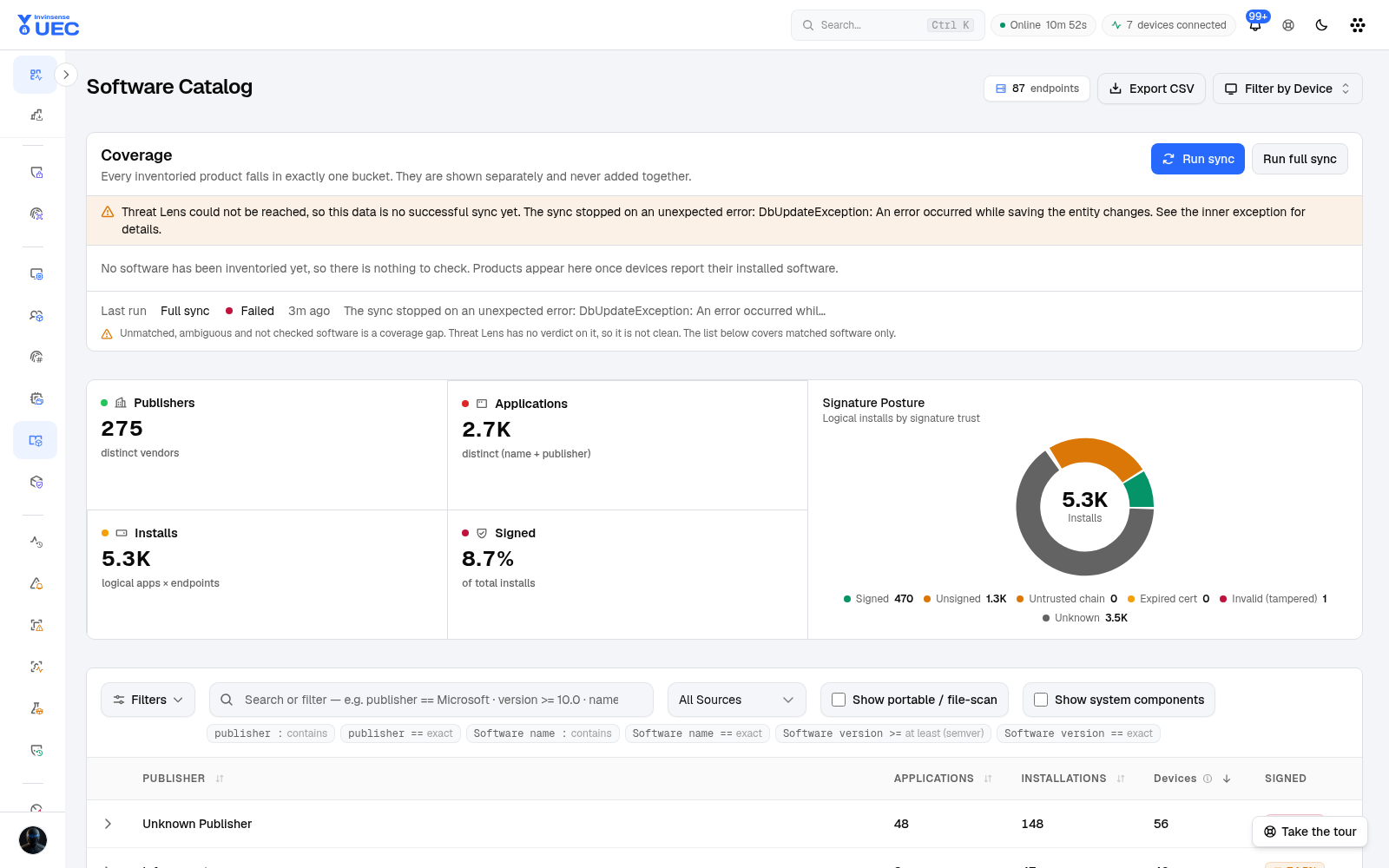
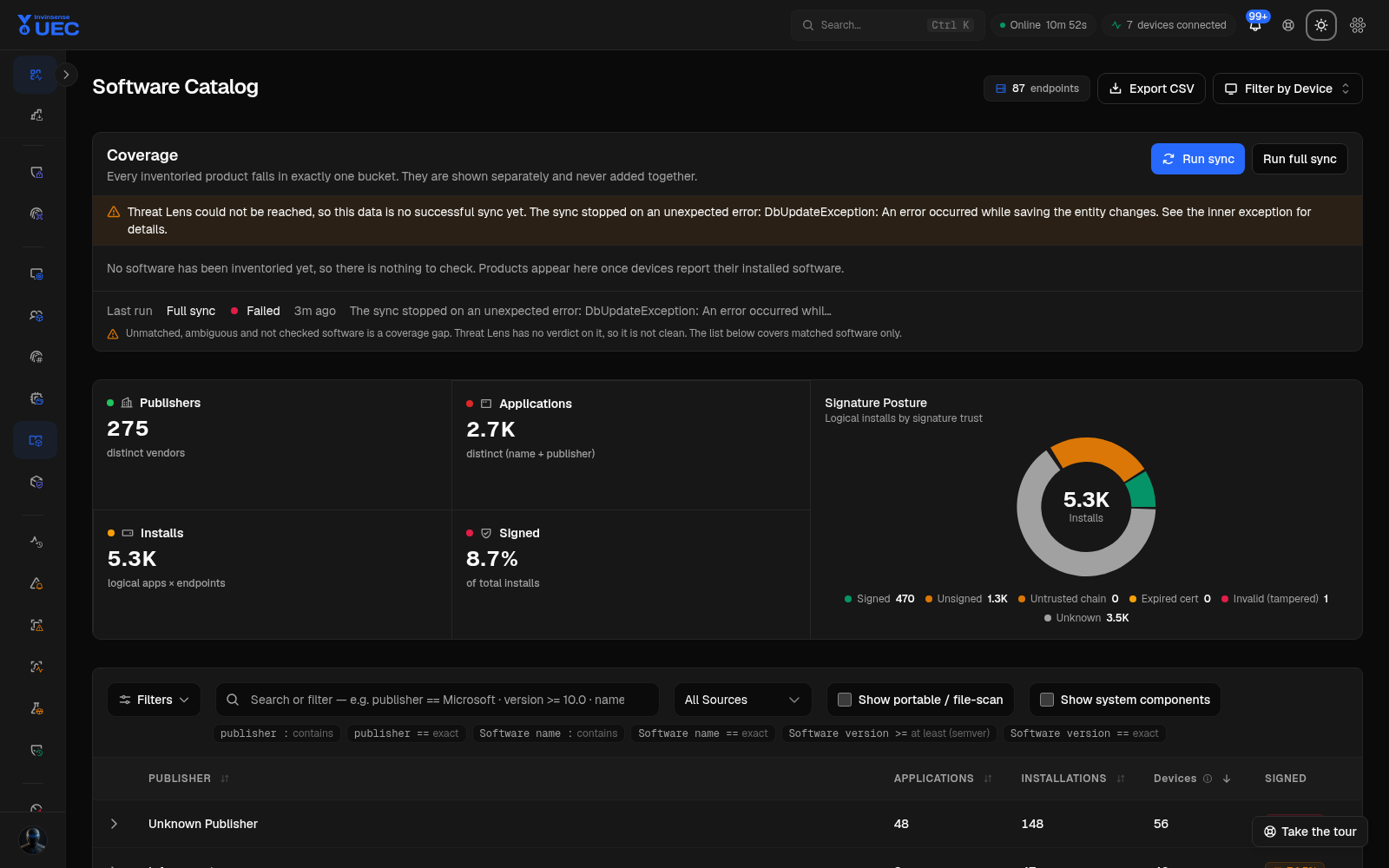
Do not treat a low signed percentage as automatically malicious. Linux package metadata, scripts, internal tools and unsigned installers all affect the number. Read it beside publisher, source and device.
First policy: audit, do not enforce
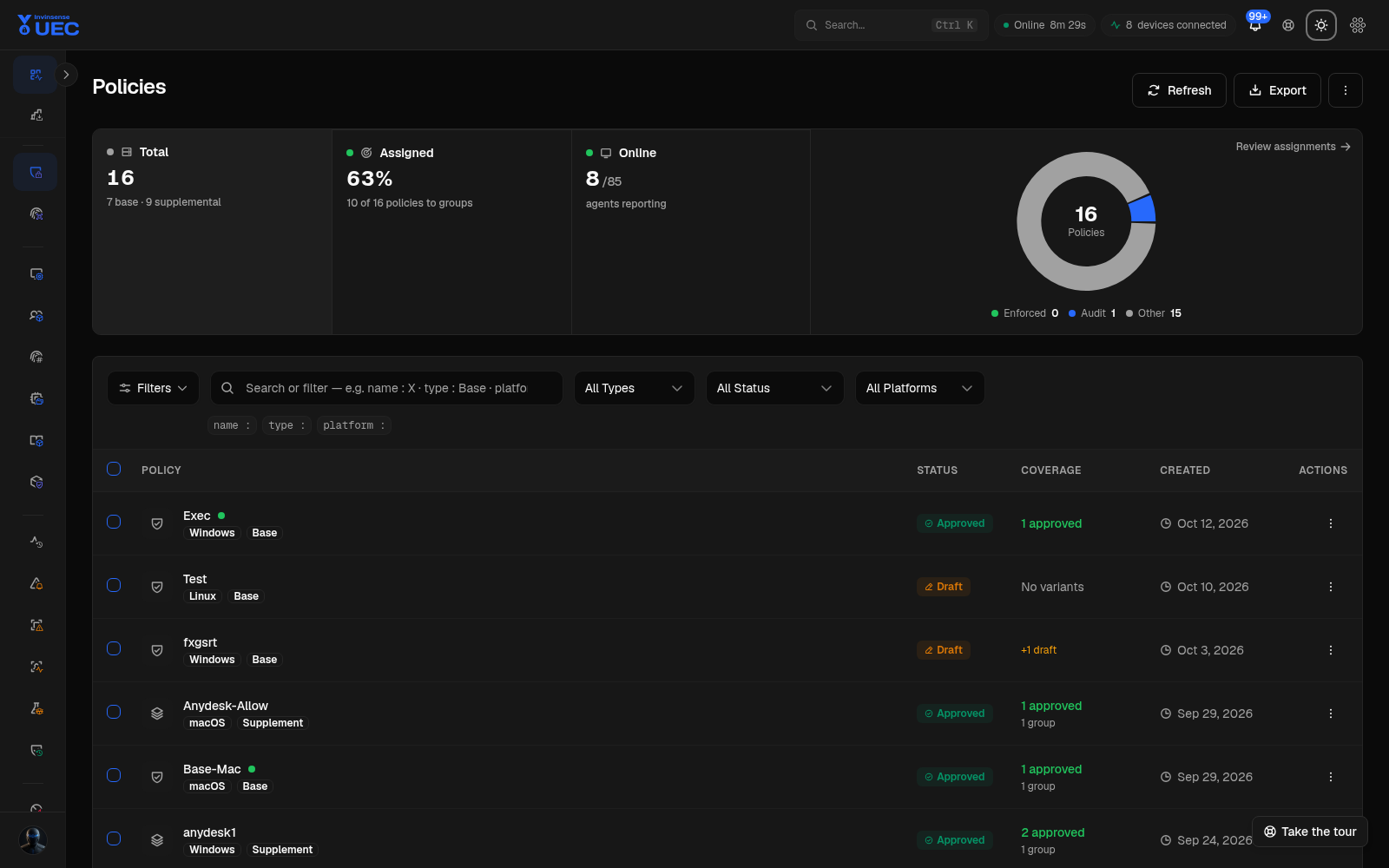
Section titled “First policy: audit, do not enforce”- Open Policies.
- Create a base policy for one test platform.
- Start from an empty, default Windows or hardened template as appropriate.
- Keep the first variant in Draft while you review rules and policy options.
- Submit it for review, then approve it.
- Assign only the Ring 0 base group.
- Keep the effective mode Audit.
- Watch Events for blocked, audited and allowed executions.
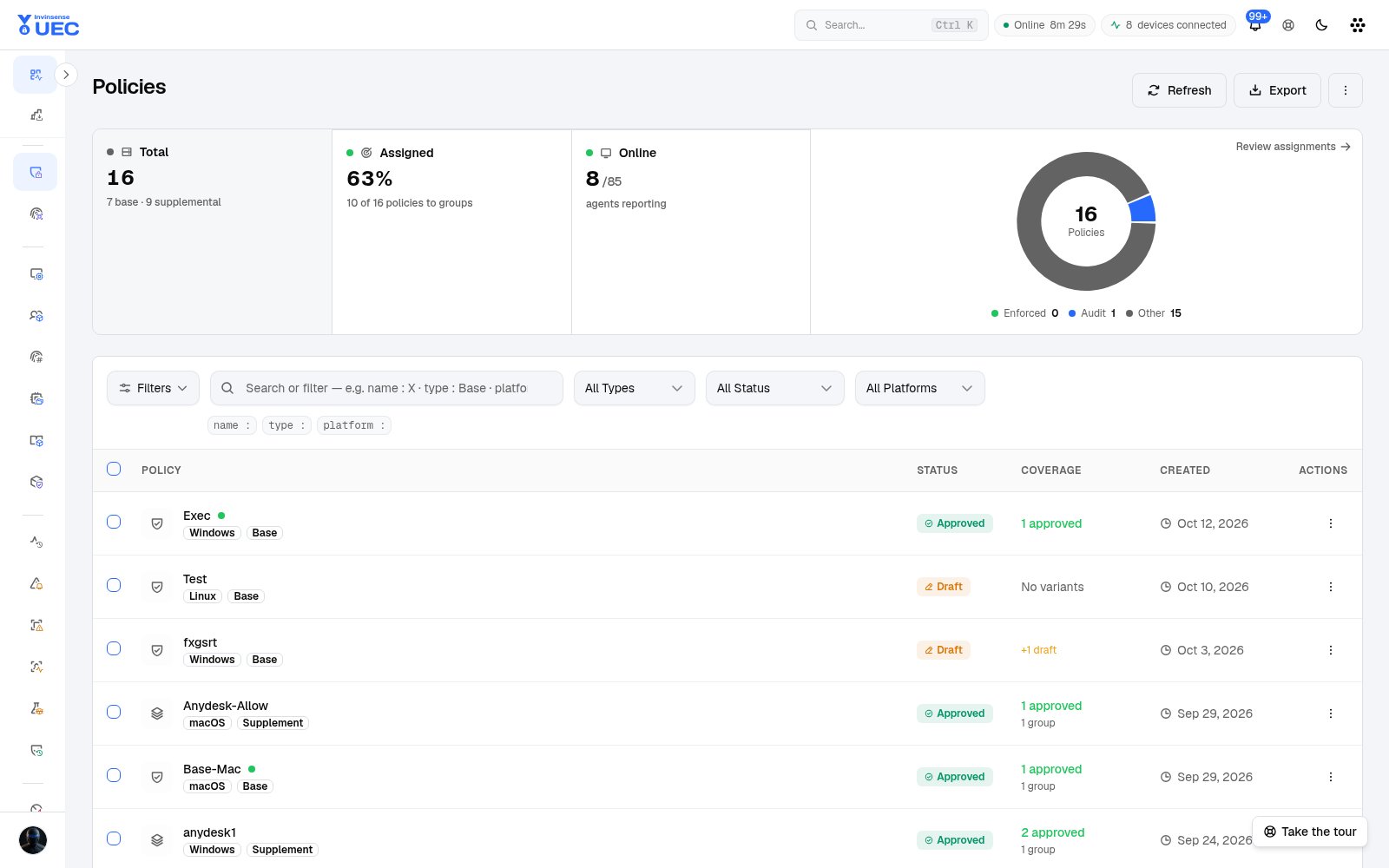
A safe promotion sequence is:
Ring 0 audit → Ring 0 enforce → Ring 1 audit → Ring 1 enforce → broader ringsNever skip the audit soak for a new base trust envelope.
Turn a real block into policy
Section titled “Turn a real block into policy”- Open Events or Alerts and select the blocked execution.
- Copy or inspect the file identity: hash, signer, publisher and path.
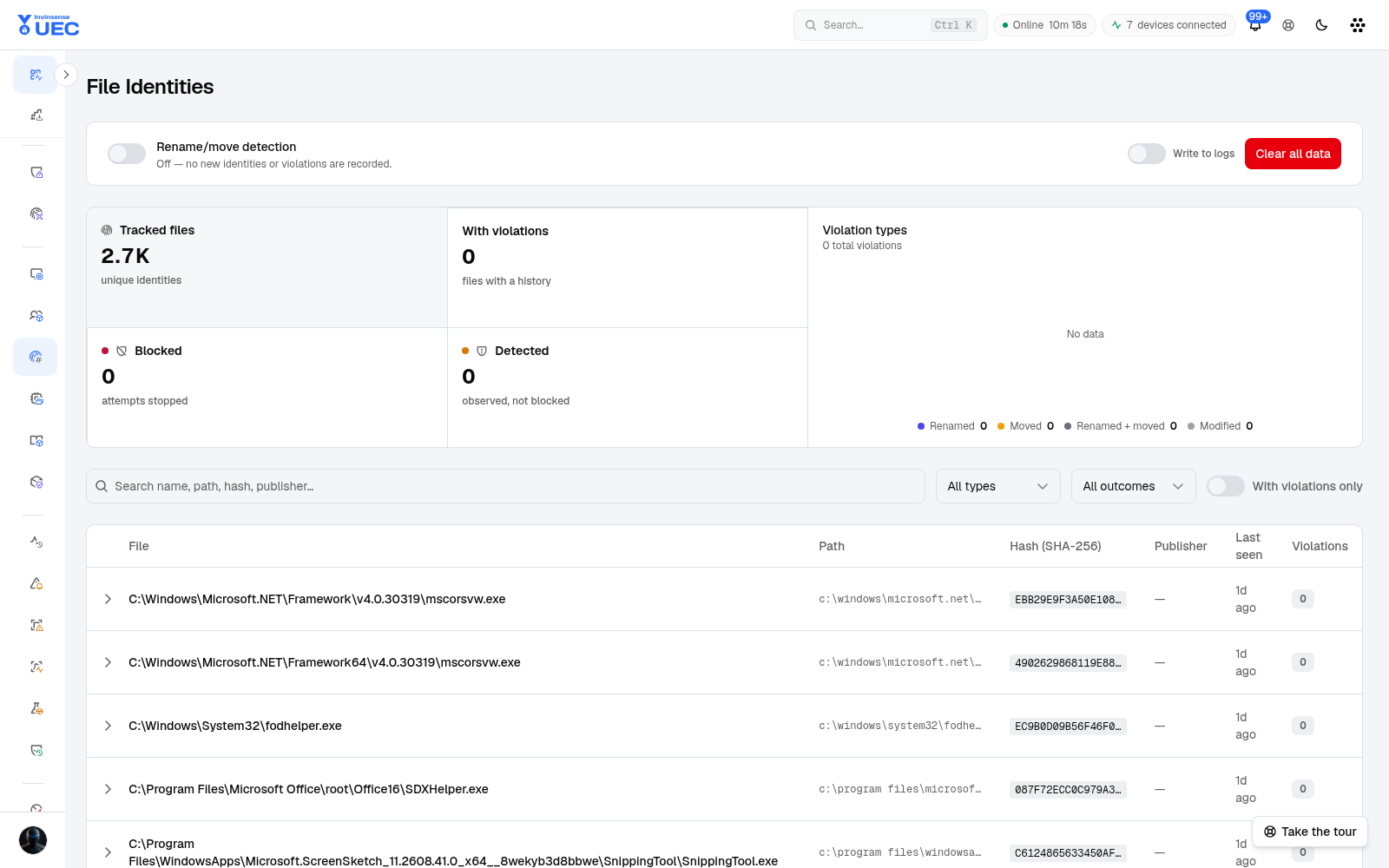
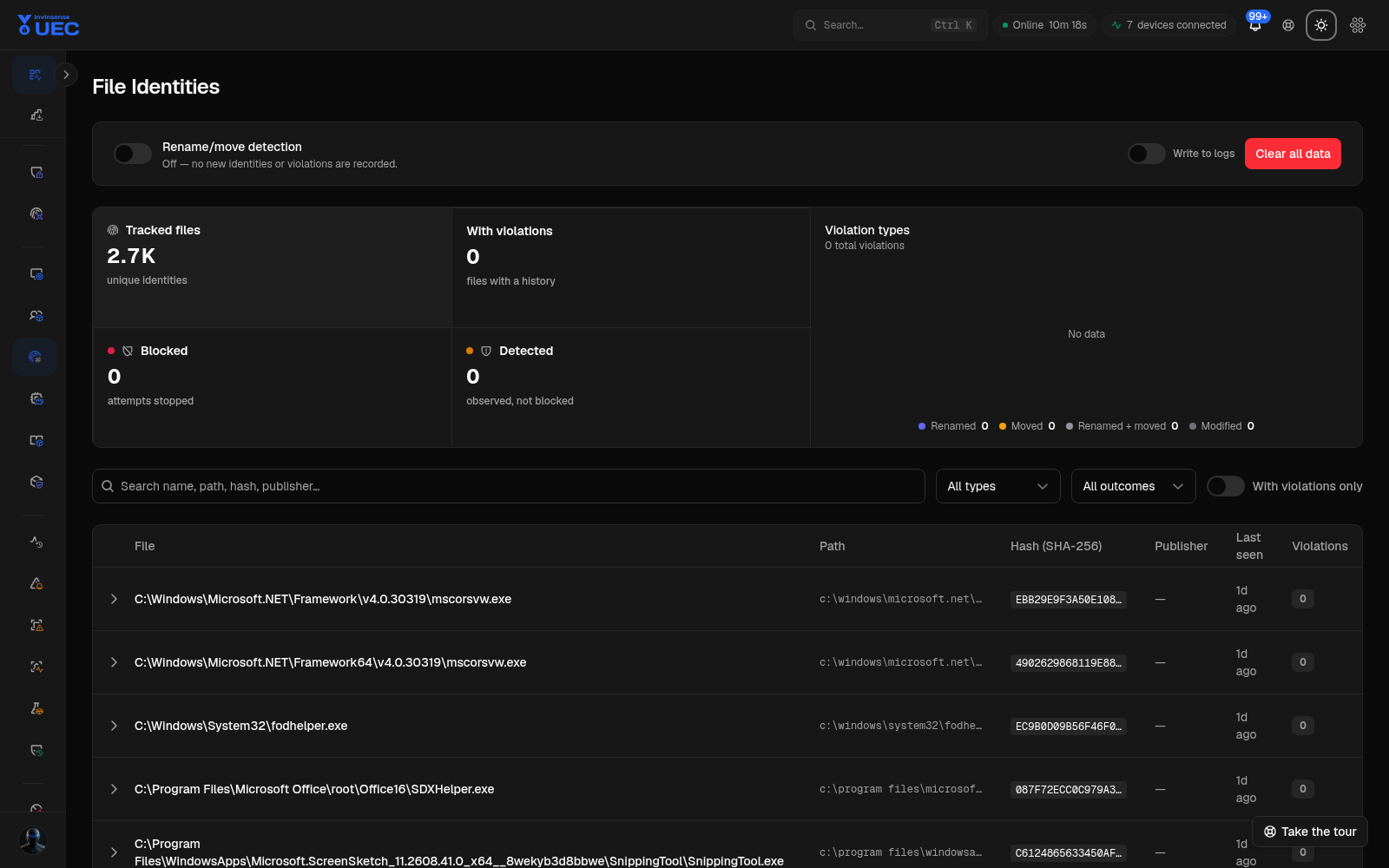
- Open Discovery Scans or File Identities.
- Prefer a signer or publisher rule when the publisher is trustworthy and stable.
- Use a hash rule for a one-off binary.
- Put the rule in a supplemental policy assigned to the smallest useful group.
- Audit, verify on one device, then broaden the assignment.
Set operating guardrails
Section titled “Set operating guardrails”Before broad rollout, an administrator should review:
| Area | Why it matters |
|---|---|
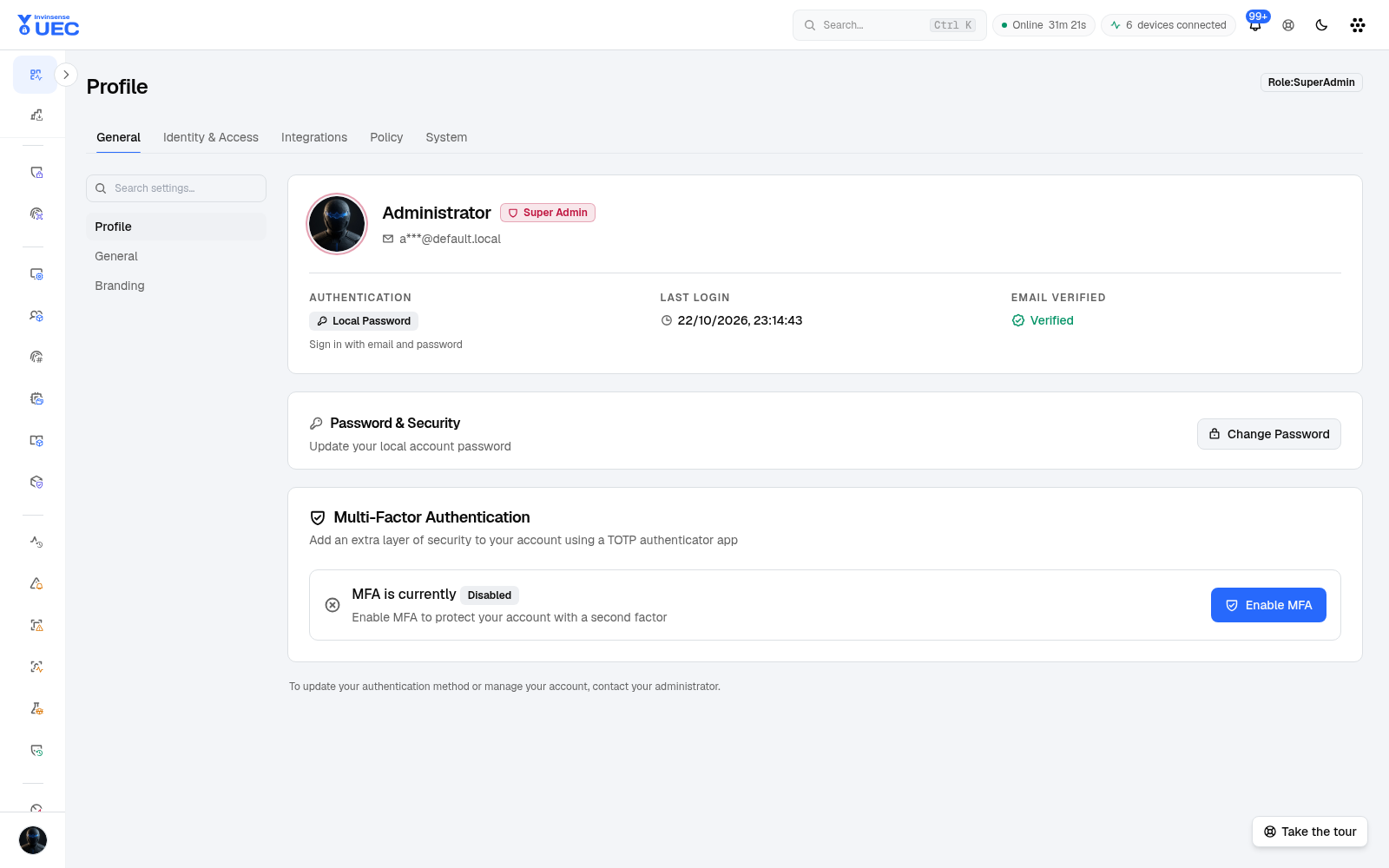
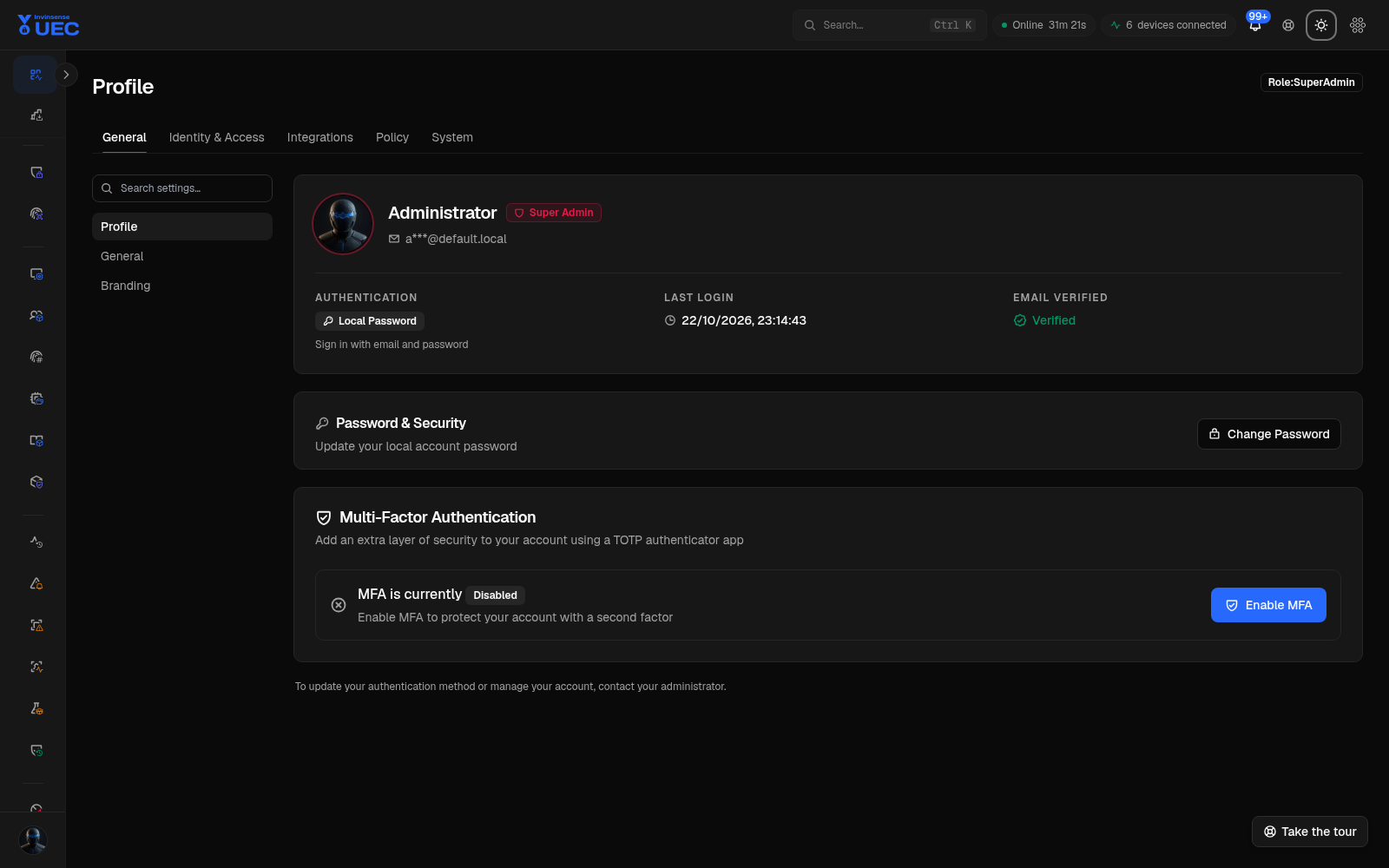
| Settings → Identity & Access | Users, roles, SSO and conditional access. |
| Settings → Security | Password policy, session and platform security choices. |
| Settings → Retention | How long events and alerts remain queryable. |
| Settings → Alert Generation | Agent-offline and noise thresholds. |
| Settings → Modules | Enable only capability the tenant uses. |
| Agent Configuration | Event channels, heartbeat and telemetry streams. |
| Audit Log | Verify changes and approvals are captured. |
Common first-day questions
Section titled “Common first-day questions”Why is a device offline? A device is offline when it misses the configured reporting threshold. Open the device to see last seen, version and health reasons such as dropped kernel events, a clock jump or reduced collector mode.
Can I enforce immediately after approving policy? Technically the artifact and assignment model supports it; operationally you should audit a ring first. Enforcement without an execution sample risks blocking boot-critical or business software.
What is the difference between a supplemental policy and a device override? Supplemental policy is durable group intent that adds trust. A device override is exceptional, temporary device-level divergence and must expire.
Does a tag deploy policy? No. Tags describe and filter devices. Policy resolution uses base and supplemental groups.
Why do two themes exist? Operators work in different lighting and accessibility contexts. Both themes use the same design tokens; filters, charts, badges and tables should carry the same meaning in either theme.