
Reports
Reports creates PDF and CSV reports for one base policy group.
Reports creates PDF and CSV reports for one base policy group. Report data is scoped through that group, so a reader sees the same fleet boundary the operator selected.
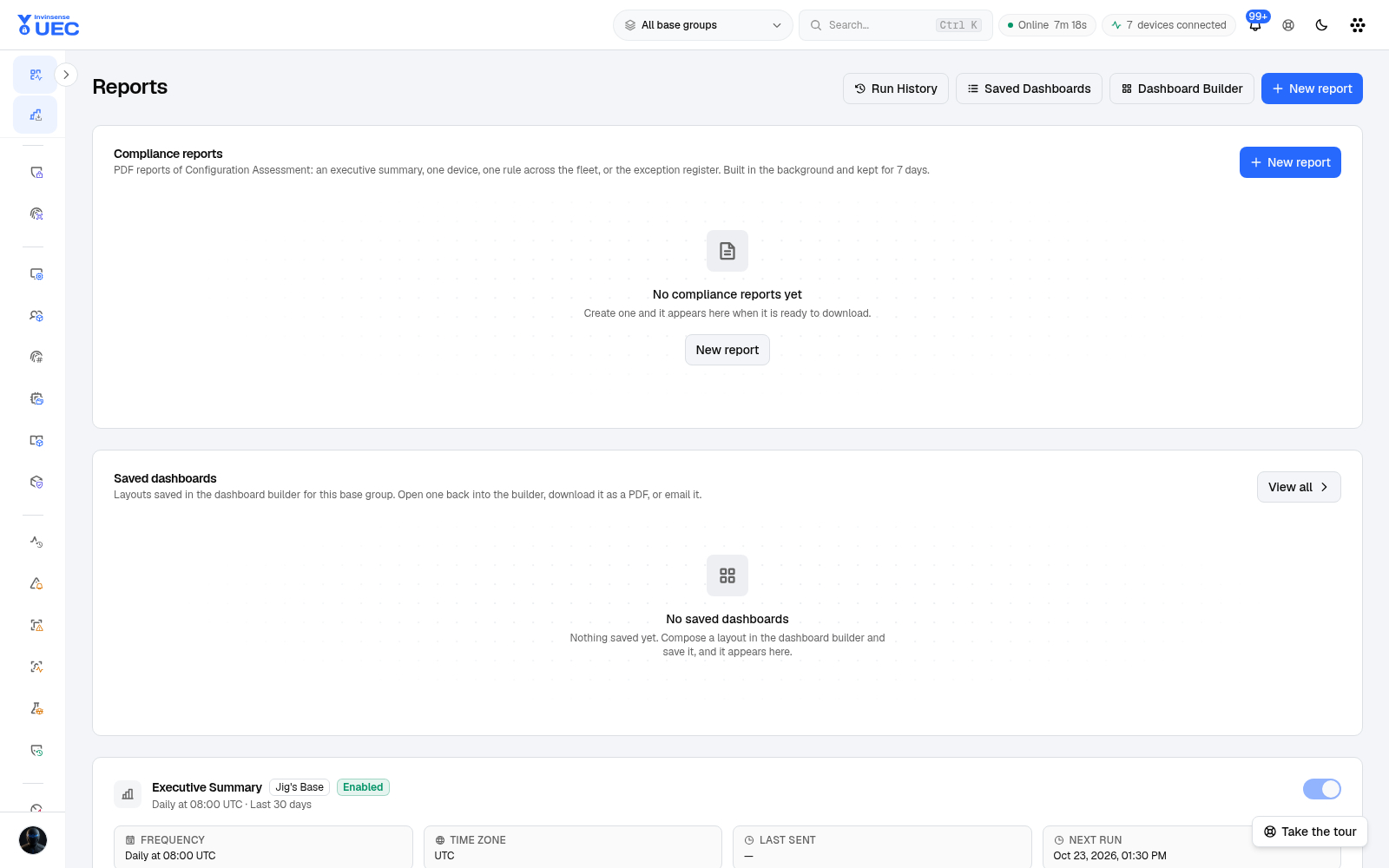
Report types
Section titled “Report types”| Type | Audience | Content |
|---|---|---|
| Executive Summary | Leadership | Fleet and security posture summary |
| Threat | SOC / detection owner | Findings by severity, ATT&CK tactic/technique, rule, device and day; newest finding rows |
| Application | Application-control owner | Distinct apps, first seen in period, most-blocked software |
| Response | Response owner / auditor | Active Response and Live Response actions with outcomes |
| FIM Compliance | Integrity/compliance | File Integrity Monitoring compliance view |
| Dashboard | Managers | Selected dashboard data as a report |
Threat, Application and Response reports support CSV as well as PDF. Scheduled email remains PDF only. PDF and CSV are generated from the same report-data snapshot so the formats cannot disagree.
Create a report
Section titled “Create a report”- Choose a base group scope.
- Select New report.
- Pick the report type.
- Select period and format.
- Add recipients for email or run once.
- Run.
- Download from the page or review it in Run History.
If Threat Detection is disabled, the Threat report renders an explicit module-disabled notice rather than showing an empty result as if there were no findings.
Data boundaries
Section titled “Data boundaries”- Queries are scoped through
Device.BaseDeviceGroupId. - Response reports intentionally exclude raw parameters, arguments, output and error text.
- Threat reports exclude sensitive command-line/process-image detail.
- CSV cells beginning
=,+,-or@are apostrophe-prefixed to mitigate spreadsheet formula injection. - Removed-software history is not currently retained as tombstones; the Application report states “not available” for that section instead of inventing a removal list.
Run History
Section titled “Run History”Run History shows created time, group, report type, trigger, status, recipients, completion time and failure reason.
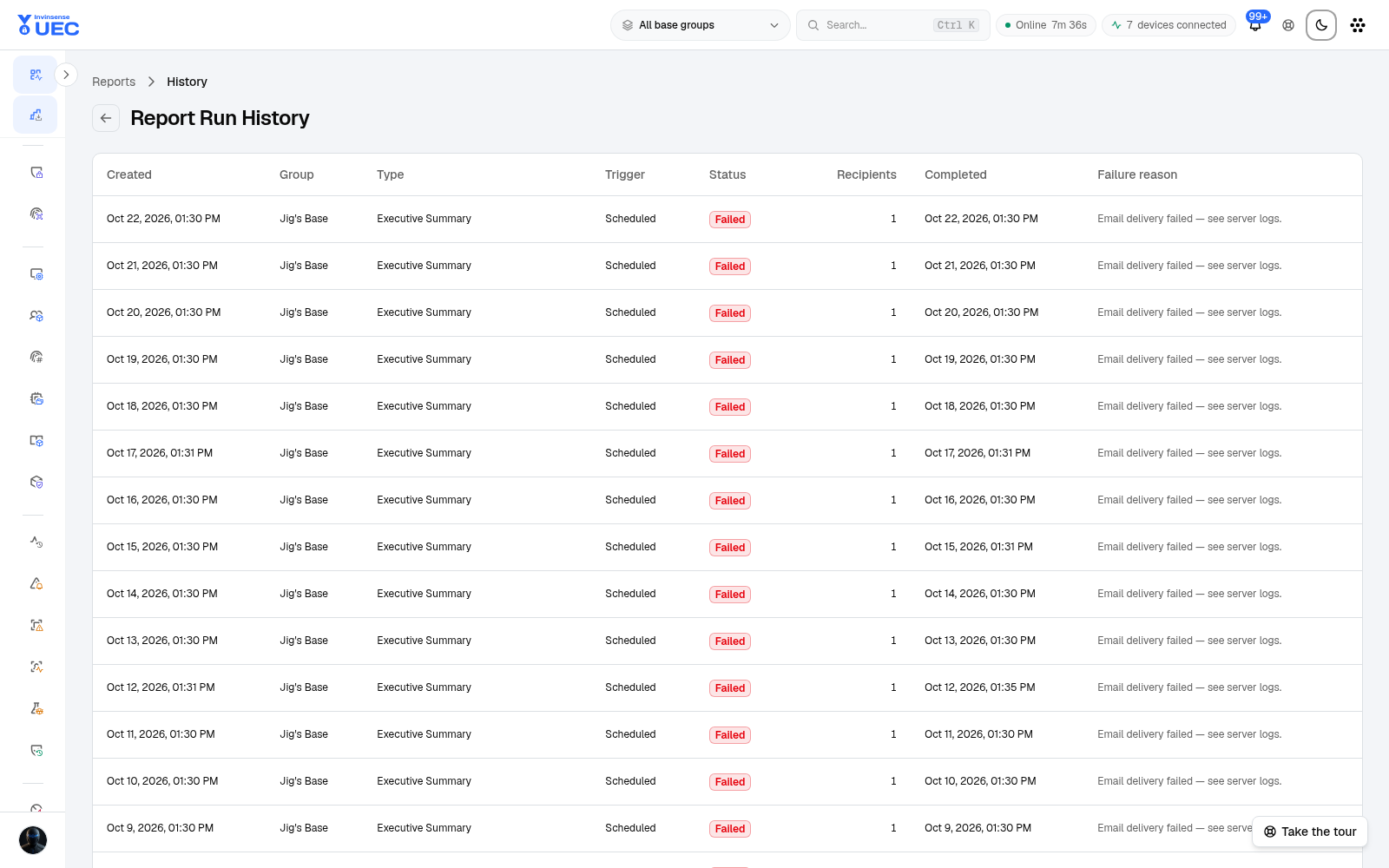
Use failure reasons to diagnose email delivery or rendering. Do not delete failed runs immediately: they are useful evidence that a scheduled report was not delivered.
Scheduling guidance
Section titled “Scheduling guidance”- Send executive summaries on a fixed weekly cadence.
- Send threat reports to the SOC daily during tuning.
- Send response reports after change windows or monthly for audit review.
- Keep recipient lists owned by a group mailbox, not one person.
- Check Run History after SMTP/integration changes.