
Homepage and Security Overview
The homepage is the operating summary for the selected base policy group.
The homepage is the operating summary for the selected base policy group. It answers four questions before an operator opens a list: is the fleet reporting, what is being blocked, what needs attention now, and is posture improving?
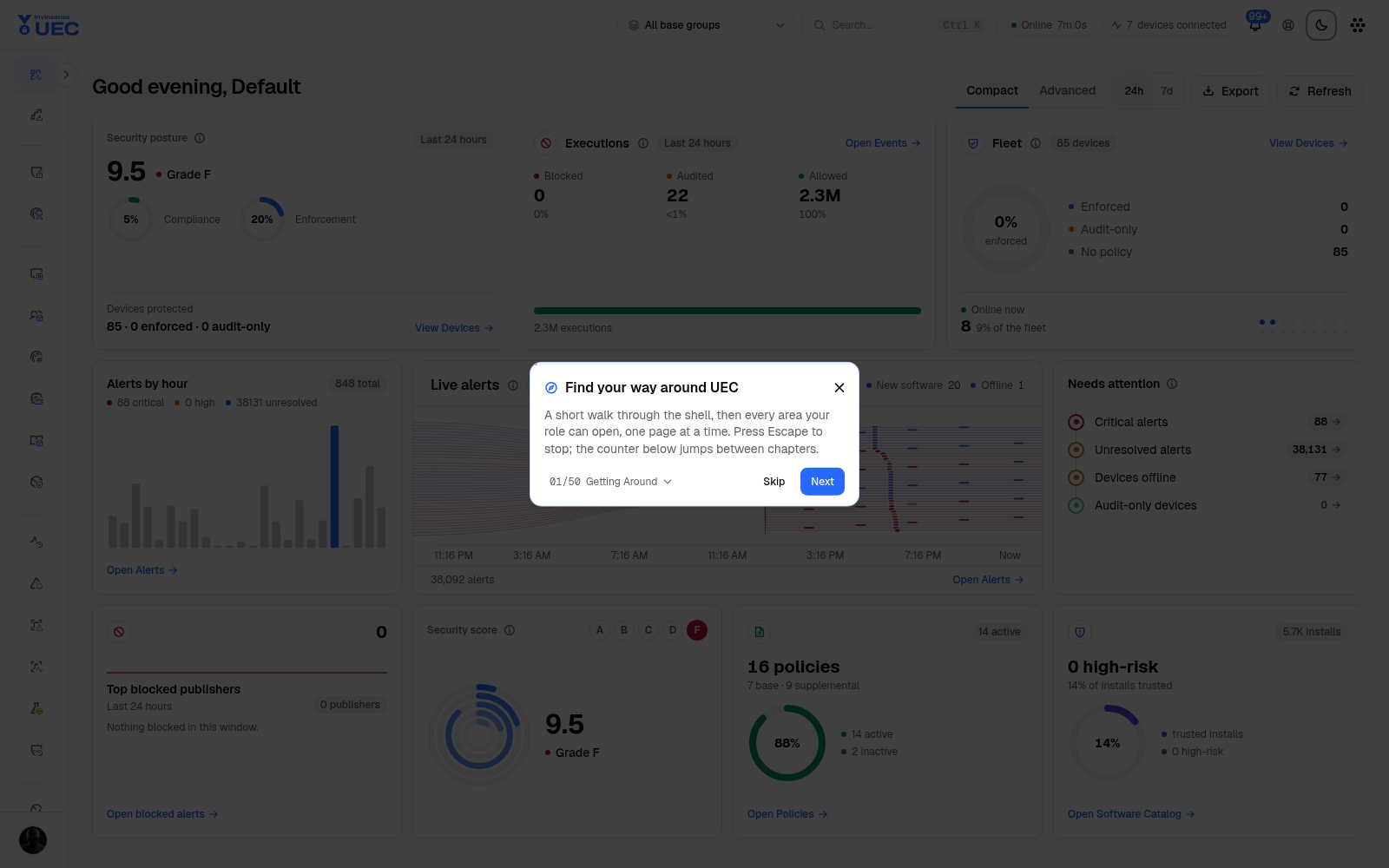
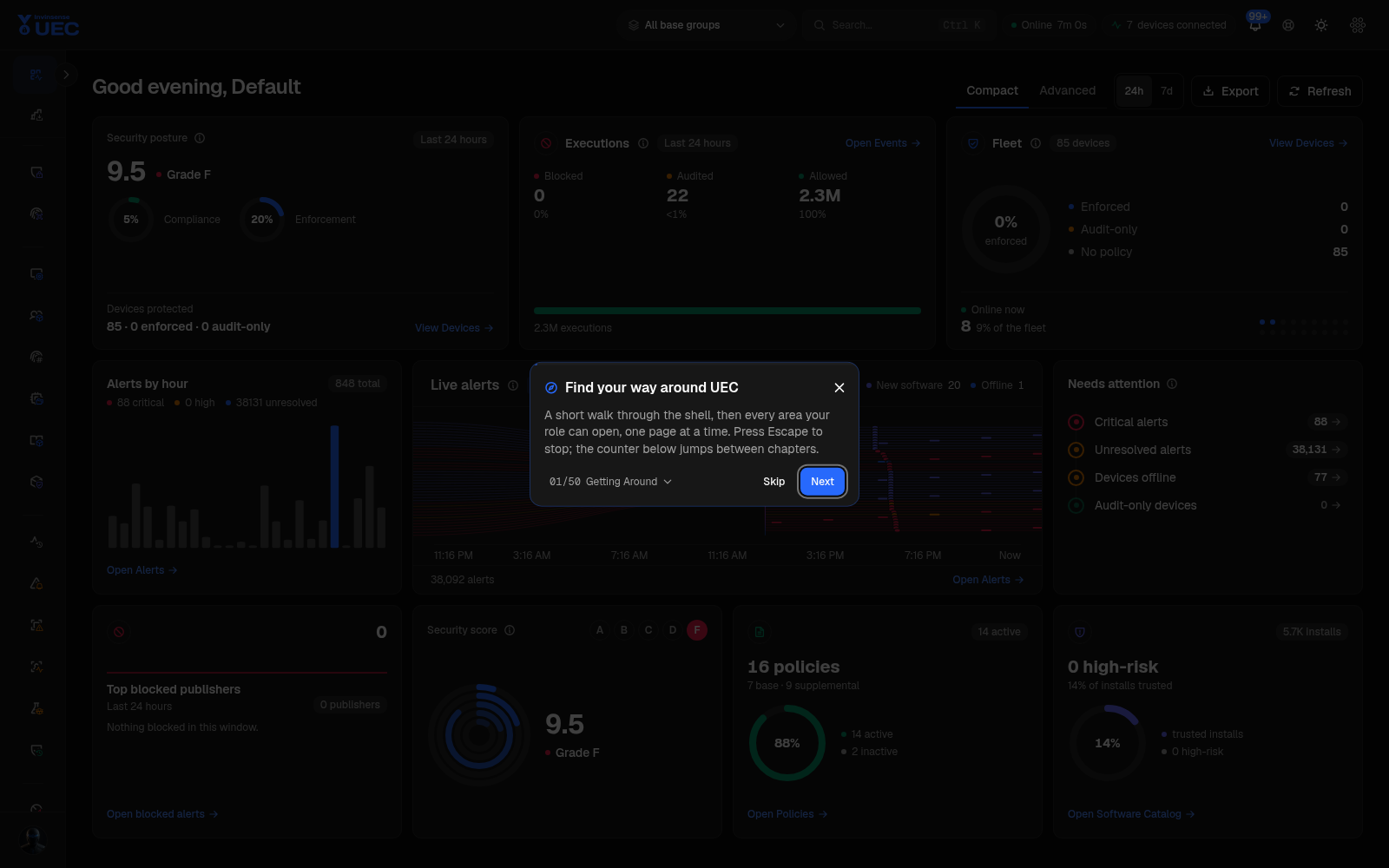
Shell controls
Section titled “Shell controls”| Control | What it does |
|---|---|
| Base policy group scope | Narrows dashboard aggregates to one base group. |
| Search | Opens command/page search. |
| Connection pill | Shows SignalR connection state, uptime and connected-device count. |
| Notifications | Unread alert and approval inbox. |
| Guided tour | Starts or resumes the fifty-step tour. |
| Theme switch | Changes light/dark and remembers the choice. |
| Product menu | Opens other licensed Invinsense modules. |
| Account menu | Profile, password and sign-out actions. |
| Sidebar expander | Collapses navigation to a rail or expands it. |
The sidebar is organised into Overview, Policies and endpoints, monitoring and protection, compliance, operations, tooling, AMTD risk and management. Group headings are not decoration: they explain which job a page serves.
Compact view
Section titled “Compact view”Compact is the default shift view. It favours four operational summaries and a live alert stream over a wall of charts.
Security posture
Section titled “Security posture”The posture card brings together score, active rate, enforcement depth and signed-install context. Use the information button for the current definition. A low score with high enforcement deserves different investigation than a high score with mostly audit-only devices.
Executions
Section titled “Executions”The execution summary links to Events. It is where an audit soak should show audited or blocked volume falling as policy converges.
Fleet summarises online and offline endpoints. The card links to Devices; the notification inbox can also collapse repeated agent-offline alerts into one fleet row.
Needs attention
Section titled “Needs attention”Critical alerts, unresolved alerts, offline devices and audit-only devices are separate links. This prevents a single total from hiding an operational problem.
Live alerts
Section titled “Live alerts”The live feed shows individual alert threads as they arrive. Each mark carries severity, title, device and relative time; selecting it opens the alert. The LIVE marker reflects the real-time connection. When disconnected, the console switches to polling and tells you rather than showing a stale feed as live.
Advanced view
Section titled “Advanced view”Advanced expands the homepage into card-based analysis. Cards can be reordered, and the current development data includes the following areas:
| Card | Use it to answer |
|---|---|
| Top blocked | Which publisher, hash or path is being blocked most? Switch dimension or export for triage. |
| Posture funnel | How much of the fleet has audit, enforcement, signature trust and kernel-integrity coverage? |
| Trends | Are events and alerts changing after a policy or control change? Watch for kernel-mode block spikes. |
| Recent alerts | Which concrete alerts represent the aggregate? |
| Automated Moving Target Defense | What is the AMTD protector state, AI usage and exfiltration picture? |
| Top Risk Insights | Which vulnerabilities, high-risk software, end-of-life software or control violations dominate? |
| Fleet Geo Map | Where are protected and reporting devices? |
Use the 24h and 7d radio buttons to compare immediate noise with weekly shape. Export preserves the selected scope; Refresh forces the current queries to reload.
Reading the dashboard honestly
Section titled “Reading the dashboard honestly”- A dashboard aggregate is only as useful as its base-group scope. Check the scope before comparing numbers with a teammate.
- Live does not mean complete. A device may be online while a particular telemetry stream is disabled or degraded.
- Blocked is not automatically malicious. Early audit policy often blocks missing business software.
- Unsigned is not automatically untrusted. OS packaging, scripts and internal tools can be unsigned.
- A posture score is a summary, not an incident verdict. Open Events or Alerts before responding.
Common navigation shortcuts
Section titled “Common navigation shortcuts”| Goal | Path |
|---|---|
| See current alerts | Alerts |
| Investigate executions | Events |
| Check a device | Devices, then open the row |
| Tune a policy | Policies |
| Review a response | Response Actions |
| Understand risk | Risk Management pages under AMTD |
| Verify tenant health | About |
| Review changes | Audit Log |